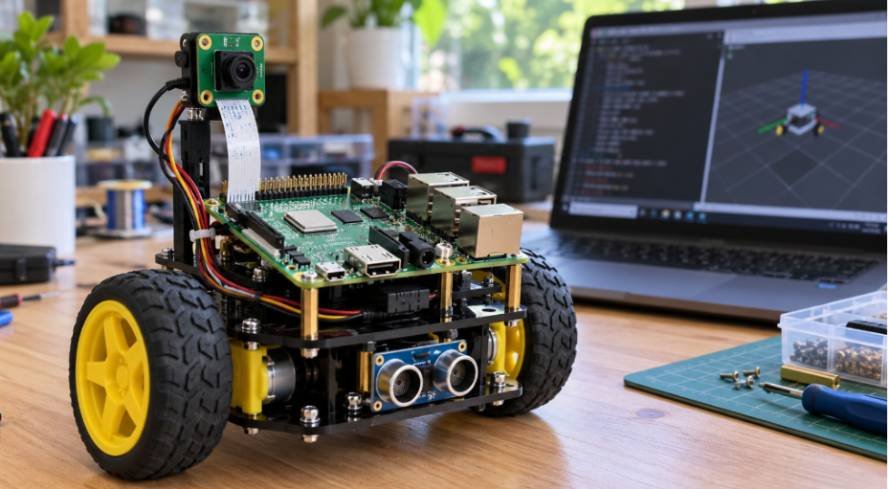
Your Raspberry Pi does not need wheels to prove it can run robot software. Start by making two programs exchange messages, then add sensors and motors once that foundation works.
My approach to this ros2 on raspberry pi beginner tutorial is simple: verify each layer before adding another. You will install Ubuntu Server, connect through SSH, configure ROS 2 Jazzy, and run a publisher–subscriber example.
I use one software pairing throughout to keep commands consistent: Ubuntu Server 24.04 LTS, 64-bit, with ROS 2 Jazzy.
Choose Your Raspberry Pi and Ubuntu Version
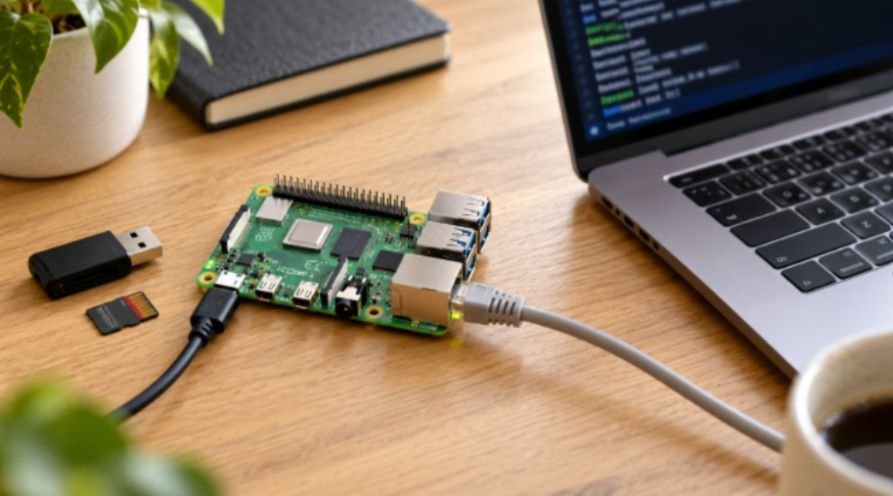
For this setup, I would choose a Raspberry Pi 4 or 5 with at least 4GB RAM. A 2GB board can handle lightweight examples, but leaves less room for development tools and other processes.
RAM alone does not determine your ROS distribution. Match ROS packages to their supported Ubuntu release. Jazzy packages target Ubuntu 24.04; Humble packages target Ubuntu 22.04.
Use a reliable 32GB microSD card, a suitable power supply, and cooling for sustained workloads. Keep motors disconnected during installation. Before moving to battery operation, review how to power a raspberry pi robot.
I favor a headless installation because it avoids running a desktop on the Pi. Ubuntu documents both local and headless Ubuntu Server setup.
Set Up Ubuntu Server and SSH Access
Open Raspberry Pi Imager on your main computer. Select your board, Ubuntu Server 24.04 LTS 64-bit, and the correct storage device.
Writing the image erases the selected card, so check that selection carefully.
Where the image supports customization, set your username, a strong password, network details, and SSH access. Menu labels vary between Imager versions.
Write the image, insert the card, and power up. Allow several minutes for initial configuration. Find the Pi’s address through your router’s connected-device list.
From Windows Terminal, macOS Terminal, or Linux, connect using:
ssh YOUR_USERNAME@PI_IP_ADDRESS
Replace both placeholders. Do not assume your username is ubuntu or your hostname is raspberrypi.local.
Once connected, check your platform:
dpkg –print-architecture
. /etc/os-release
echo “$VERSION_ID”
For this tutorial, expect arm64 and 24.04. Then update:
sudo apt update
sudo apt upgrade -y
sudo reboot
Reconnect after the restart.
Install ROS 2 Jazzy on Raspberry Pi
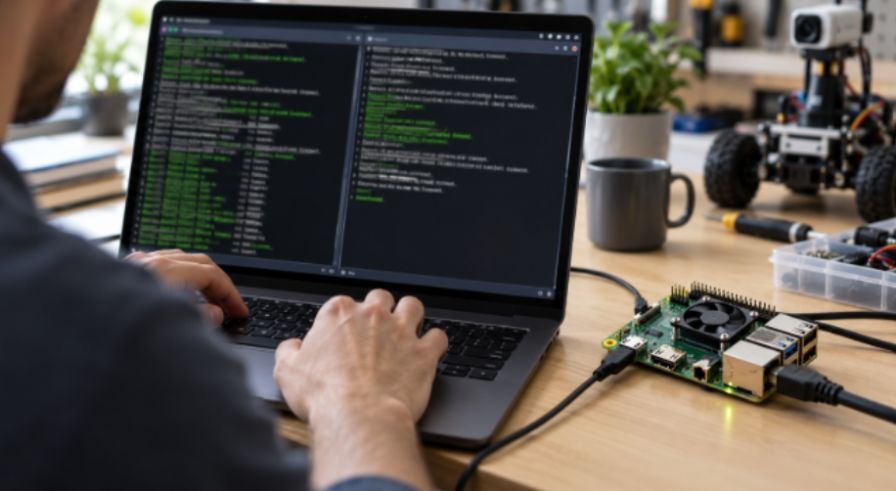
Run the following commands inside your Pi’s SSH session. These install prebuilt packages rather than compiling ROS from source.
Configure Your Locale and Ubuntu Repositories
Set a UTF-8 locale:
sudo apt install -y locales
sudo locale-gen en_US en_US.UTF-8
sudo update-locale LC_ALL=en_US.UTF-8 LANG=en_US.UTF-8
export LANG=en_US.UTF-8
Install the repository prerequisites:
sudo apt install -y software-properties-common curl ca-certificates
sudo add-apt-repository -y universe
Check /etc/apt/sources.list.d/ubuntu.sources. Its main Ubuntu entry should include noble-updates and noble-backports alongside noble. Preserve the separate security entry.
ROS’s Raspberry Pi instructions flag these suites because missing updates can cause dependency failures.
Add the ROS Repository and Install Packages
Use the repository package described in the official ROS installation instructions. It manages repository configuration and signing keys, replacing the need for a manual key-fetch workflow.
First, retrieve the release version:
sudo apt update
export ROS_APT_SOURCE_VERSION=$(
curl -fsSL –connect-timeout 15 –max-time 60 \
https://api.github.com/repos/ros-infrastructure/ros-apt-source/releases/latest |
awk -F ‘”‘ ‘/”tag_name”:/ {print $4; exit}’
)
echo “$ROS_APT_SOURCE_VERSION”
The final command must print a version. If it prints nothing, stop and troubleshoot connectivity.
Download the package:
curl -fL –connect-timeout 15 –max-time 120 \
-o /tmp/ros2-apt-source.deb \
“https://github.com/ros-infrastructure/ros-apt-source/releases/download/${ROS_APT_SOURCE_VERSION}/ros2-apt-source_${ROS_APT_SOURCE_VERSION}.$(. /etc/os-release && echo ${UBUNTU_CODENAME:-${VERSION_CODENAME}})_all.deb”
Only continue if curl succeeds:
sudo dpkg -i /tmp/ros2-apt-source.deb
sudo apt update
sudo apt install -y ros-jazzy-ros-base ros-jazzy-demo-nodes-cpp
I explicitly include the demo package because ROS-Base does not provide the full desktop demonstration bundle.
For building your own packages later, add:
sudo apt install -y ros-dev-tools
Configure Your ROS 2 Environment
Load ROS into your current Bash session:
source /opt/ros/jazzy/setup.bash
Add that line to ~/.bashrc once:
echo ‘source /opt/ros/jazzy/setup.bash’ >> ~/.bashrc
Check the selected distribution:
echo “$ROS_DISTRO”
Expect jazzy. If you see ros2: command not found later, source the setup file again.
Avoid mixing Humble and Jazzy setup files in the same shell. A consistent environment makes troubleshooting much easier.
Run Your First ROS 2 Publisher and Subscriber
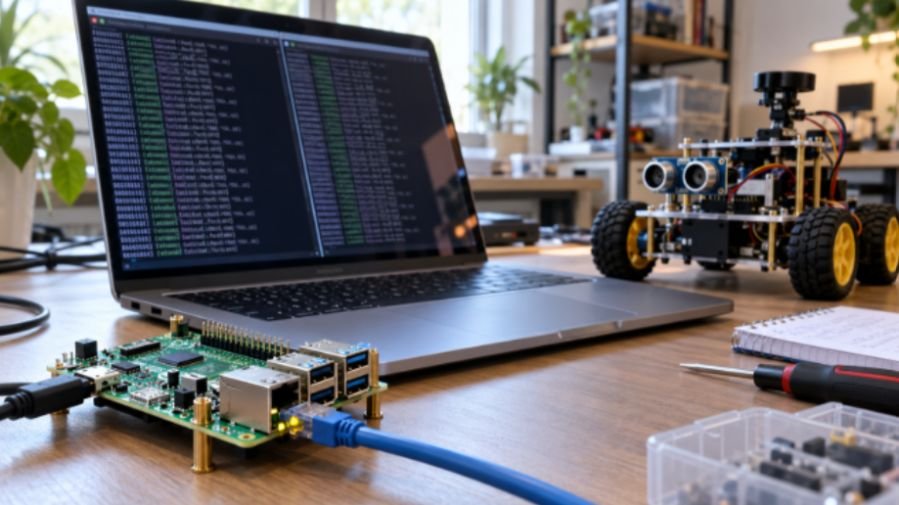
Open two SSH sessions connected to the Pi.
In the first, start the listener:
ros2 run demo_nodes_cpp listener
In the second, start the talker:
ros2 run demo_nodes_cpp talker
The talker publishes numbered greetings. The listener should print messages containing I heard.
A node is a running ROS program. A topic is a named communication channel. Here, the talker publishes strings on /chatter, and the listener subscribes.
A node is a running ROS program. A topic is a named communication channel. Here, the talker publishes strings on /chatter, and the listener subscribes. Once you understand this basic exchange of commands and messages, you can explore other interactive electronics projects, such as a DIY voice-controlled desk lamp using ESP32, to see how software can respond to user input and control physical devices.
Open a third SSH session to inspect the connection:
ros2 node list
ros2 topic list
ros2 topic info /chatter
My checkpoint rule is to record three separate successes: SSH connects, both nodes appear, and messages arrive.
That distinction prevents a common mistake: treating one successful test as proof of the entire robot.
Both nodes currently run on the same Pi. This verifies local ROS communication; it does not verify discovery between separate computers.
Stop each demo with Ctrl+C.
Fix Curl Timeouts and Installation Errors
The earlier supplied command used https://githubusercontent.com, which is not the complete ROS key URL. Repeated retries cannot repair an incorrect address.
For the package workflow above, diagnose the actual download hosts:
getent hosts api.github.com github.com
curl -v –connect-timeout 15 –max-time 30 \
https://api.github.com/
“Could not resolve host” points toward DNS. A timeout may involve routing, filtering, or a proxy. A certificate error suggests checking certificates and the clock.
timedatectl status
sudo timedatectl set-ntp true
sudo apt install –reinstall -y ca-certificates
Follow curl’s certificate guidance rather than disabling verification with -k.
Avoid overwriting /etc/resolv.conf blindly. Ubuntu commonly manages DNS through other services. Inspect resolvectl status and correct your router or network configuration.
Switching to wget will not bypass a blocked domain. Try an authorized alternative network if filtering prevents downloads.
If the demos report “package not found,” confirm the demo package installed successfully. If a listener stays silent, compare ROS_DOMAIN_ID in both terminals and remove conflicting discovery settings before restarting.
Your Pi Has Words—Give It a Job
I would stop here long enough to save these working commands. Then add one sensor and publish one useful value.
IWhen you are ready to explore motor control, this tutorial on how to control a stepper motor with ESP32 and A4988 can help you understand how a microcontroller and motor driver work together to produce controlled movement.
Once you are comfortable with the basics, you can move on to a hands-on project such as this DIY 3D-printed robotic arm step-by-step project to explore how software and mechanical components work together.
A camera project can come next; a raspberry pi home security camera offers a practical reason to learn image topics. Check camera-driver support before expanding the software stack.
Finish this ros2 on raspberry pi beginner tutorial with a repeatable message test. Motors can wait until your software reliably says hello.
Frequently Asked Questions
1. Can I follow a ros2 on raspberry pi beginner tutorial using Raspberry Pi OS?
Yes, but this Ubuntu package workflow requires Ubuntu; Raspberry Pi OS needs another installation route, such as Docker.
2. Can a Raspberry Pi with 2GB RAM run ROS 2?
Yes, lightweight nodes can run, though larger builds and vision workloads may exceed available memory.
3. Why does ROS 2 say demo_nodes_cpp is missing?
Install ros-jazzy-demo-nodes-cpp, then source /opt/ros/jazzy/setup.bash in your terminal.
4. Does the talker–listener test prove my robot’s Wi-Fi works?
Running both nodes on one Pi verifies local messaging; separate-machine discovery needs its own network test.