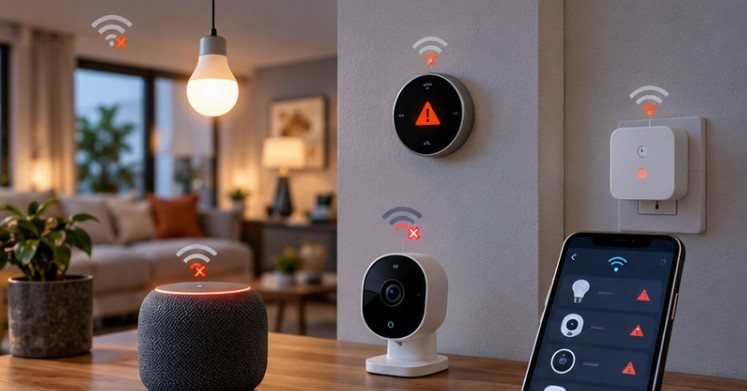
A smart bulb does not need much bandwidth. Neither does a door sensor, thermostat, or smart plug. Yet these tiny devices can be some of the most frustrating equipment on a home network.
If you are asking why do smart home devices keep disconnecting, raw internet speed is rarely the whole story. More often, the problem lies between the device and router: crowded 2.4 GHz spectrum, weak signal strength, router configuration, changing IP addresses, outdated firmware, or a device that depends on an unreliable cloud service.
The good news is that randomly rebooting everything is usually unnecessary. A methodical check can narrow the problem surprisingly quickly.
Your Internet Can Be Fast While Your Smart Home Is Unstable
A 500 Mbps or gigabit internet plan does not guarantee reliable Wi-Fi in every room. Internet speed measures your connection to your provider. A smart thermostat disconnecting from a router ten feet away is primarily a local-network problem. Similarly, an outdoor camera at the edge of Wi-Fi coverage can repeatedly drop even while a laptop beside the router gets excellent speeds.
This distinction matters because upgrading an internet plan may accomplish nothing. Before blaming the ISP, determine whether one device, one room, one Wi-Fi band, or the entire network is failing.
The 2.4 GHz Band Is Often the First Place to Look
Many inexpensive smart plugs, bulbs, switches, appliances, cameras, and older IoT products connect only to 2.4 GHz Wi-Fi.
That makes sense from a hardware perspective. Compared with higher-frequency Wi-Fi, 2.4 GHz generally offers useful range and wall penetration. Unfortunately, it is also busy.
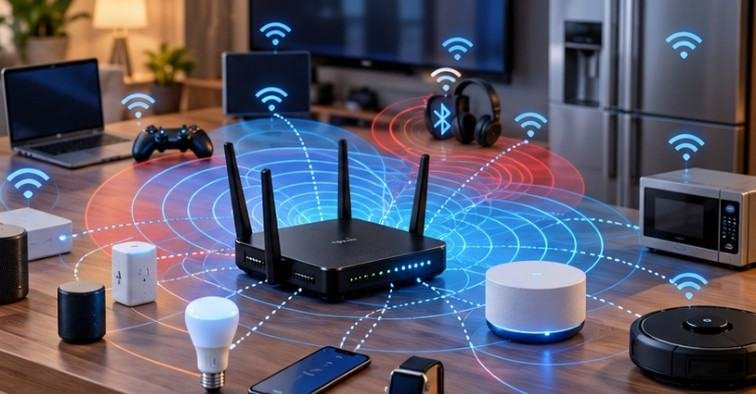
Bluetooth equipment, nearby Wi-Fi networks and numerous other unlicensed devices can operate around this spectrum. In apartments, condos, and dense US neighborhoods, several neighboring networks may compete for the same airtime.
The Federal Communications Commission has identified channels 1, 6, and 11 as the commonly used non-overlapping 2.4 GHz Wi-Fi channels in the United States.
Try a Different Channel Before Buying New Hardware
Open your router settings and inspect its 2.4 GHz wireless configuration. If channel selection is automatic and devices disconnect frequently, test channels 1, 6, and 11 individually. Give each setting enough time to reveal whether stability actually improves.
Avoid assuming the channel with the strongest-looking Wi-Fi signal is automatically best. A strong network operating amid heavy interference can perform worse than a slightly weaker but cleaner connection.
Weak Signal Often Hides Behind Device Placement
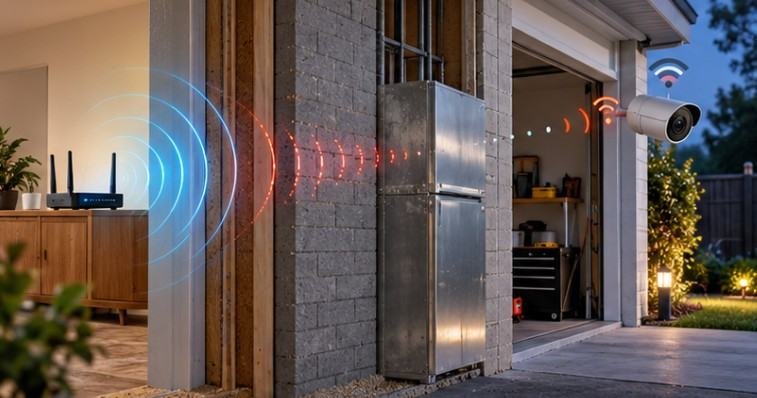
Smart devices frequently live in terrible locations for wireless networking. A garage opener may sit beyond several walls. A smart plug can be buried behind furniture. Outdoor cameras may connect through brick, concrete, insulation, metal siding, or energy-efficient windows.
Kitchen appliances and large metal objects can further complicate radio propagation. A useful experiment is temporarily moving the problem device closer to the router. If it becomes stable, you have strong evidence that coverage—not the gadget’s account or app—is causing the trouble.
Moving the router to a more central, elevated position can help. In larger US homes, a properly positioned mesh Wi-Fi system or additional access point may be more effective than simply buying a “stronger” router.
Too Many Devices Can Expose Router Weaknesses
A modern household may accumulate dozens of network clients without anyone noticing. Count phones, TVs, tablets, laptops, streaming devices, game consoles, security cameras, speakers, switches, thermostats, appliances, printers, hubs, plugs, and bulbs. Even devices using little bandwidth still consume network-management resources.
There is no meaningful universal number at which every router begins dropping clients. Hardware, memory, firmware, radio design, traffic patterns, and configuration all matter. That is why advertised maximum client counts should not be treated as guarantees.
If disconnections became more common as your smart-home collection expanded, check the router’s connected-client list. An aging ISP-supplied gateway or inexpensive older router may simply handle a crowded network poorly.
Band Steering Can Confuse Some Older IoT Devices
Modern routers often advertise 2.4 GHz and 5 GHz under one network name and automatically steer compatible clients between bands.
That is convenient for phones and laptops, but some smart-home setup processes behave badly around combined networks.
If a device repeatedly fails during installation or falls offline afterward, temporarily separating the 2.4 GHz and 5 GHz network names can be a useful diagnostic step. Connect the IoT device explicitly to 2.4 GHz and observe its behavior.
Do not assume every home must permanently split its networks, however. Plenty of modern devices work correctly with band steering. Treat separation as a test rather than a universal rule.
DHCP and IP Address Changes Can Create “Offline” Devices
Your router normally assigns local IP addresses through DHCP. These addresses may change over time.
Well-designed consumer products should cope with that normally. Problems can arise, however, with certain hubs, bridges, local dashboards, Home Assistant integrations, cameras, or automations that expect a device at a particular address.
If a locally controlled device becomes unreachable even though it still appears connected to Wi-Fi, check its current IP address.
A DHCP reservation can assign that device the same local address whenever it reconnects. Reservations are particularly useful for hubs, bridges, network cameras, servers, and devices referenced directly by local automation software.
Firmware Problems Are Easy to Ignore
Sometimes the network is fine and the software is not. Router firmware can contain compatibility bugs. IoT firmware can mishandle reconnection, DHCP renewal, authentication, or sleep states. Companion apps can also introduce problems after updates.
The Federal Trade Commission recommends keeping both routers and internet-connected devices updated. NIST likewise recommends periodic updates for IoT equipment so devices receive patches and current software.
CISA also highlights the security risks associated with connected IoT technology and the importance of evaluating devices and their supporting systems throughout their lifecycle.
The Internet Society’s IoT Trust Framework similarly emphasizes ongoing software and firmware updates throughout a connected product’s supported life.
That creates another important buying consideration: a discounted smart device is less attractive if its manufacturer has stopped maintaining it.
A Five-Minute Troubleshooting Sequence
Instead of changing ten router settings simultaneously, isolate the problem.
First, check whether other devices lose internet access at the same time. If everything disconnects, investigate the router, modem, ISP connection, or power.
Next, move the affected device closer to the router. Stability at close range points toward coverage or interference.
Then confirm which Wi-Fi band it supports. For 2.4 GHz-only hardware, test a clean channel and, if necessary, temporarily separate network names.
After that, update the router, device firmware, hub software, and companion app.
Finally, inspect the router’s client list and IP assignments. For hubs or locally addressed devices, create a DHCP reservation if changing addresses appear related to the failure.
Change one variable at a time. Otherwise, you may fix the problem without ever learning what caused it.
When Wi-Fi Is Not Actually the Problem
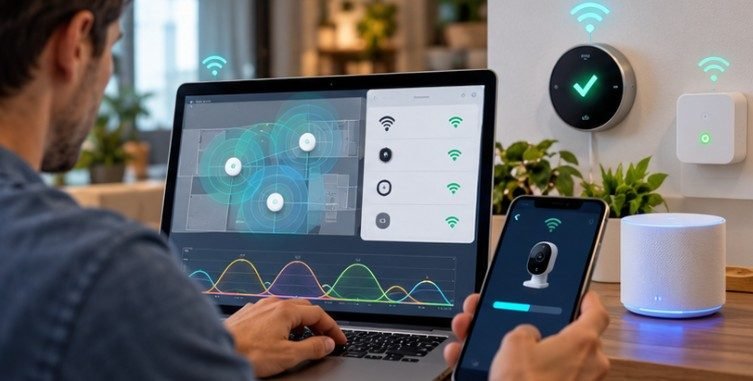
An app saying “device offline” does not prove the radio connection failed. Many consumer smart-home products communicate with a manufacturer’s cloud platform. If that service has an outage, authentication problem, expired certificate, DNS failure, or account issue, the device may look unavailable even while it remains connected to your router.
Check whether local control still works. If a light responds through a local hub but not through its remote app, the wider service chain deserves investigation.
Power also matters. Loose adapters, aging batteries, overloaded USB power supplies, and brief electrical interruptions can resemble network failures.
FAQ
1. Why do smart home devices keep disconnecting at night?
Scheduled router reboots, firmware maintenance, interference, DHCP renewals, weak signals, or cloud-service interruptions may be involved. Check router logs and whether multiple devices disconnect simultaneously.
2. Should smart-home devices use 2.4 GHz or 5 GHz?
Follow the manufacturer’s requirements. Many IoT devices support only 2.4 GHz because of its range and hardware characteristics, while newer cameras and hubs may support 5 GHz.
3. Will a mesh router stop smart devices from disconnecting?
It can help when poor coverage causes the problem. Mesh will not automatically fix firmware bugs, cloud outages, incompatible security settings, DHCP issues, or defective devices.
4. Does reserving an IP address improve Wi-Fi signal?
No. A DHCP reservation keeps a local IP address consistent. It may help local integrations, but it does not strengthen the wireless signal or eliminate radio interference.
The Connection Problem Is Usually Findable
The frustrating part of smart-home disconnections is that several failures can look identical on a phone screen. A weak Wi-Fi link, congested 2.4 GHz channel, changing local address, firmware bug, power interruption, and cloud outage may all produce the same “offline” message.
The most effective response is therefore not a random router upgrade. Determine whether the failure begins with the device, wireless signal, router, local network, or cloud service. Test one layer at a time, starting with signal strength and 2.4 GHz congestion. Once the failing layer becomes clear, the fix is usually far simpler—and cheaper—than replacing your entire smart-home setup.