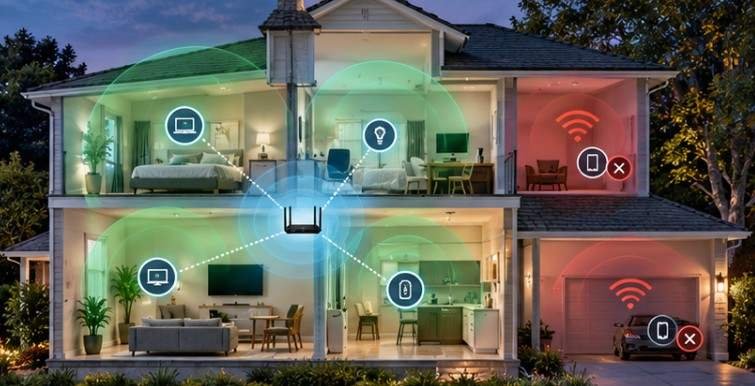
A smart bulb does not need gigabit internet. It needs something more important: a stable signal that reaches it every time. That distinction explains why a house can pass a 500 Mbps speed test beside the router while a garage camera, upstairs thermostat, or backyard plug repeatedly goes offline.
Learning how to improve wifi coverage for smart home devices is less about buying the fastest router and more about fixing weak coverage, interference, congestion, and poor access-point placement. The good news is that many unreliable smart homes can be fixed before buying any new hardware.
Why Smart Home Wi-Fi Fails in Places Your Phone Seems Fine
Smart-home devices often use smaller, lower-power radios than laptops and smartphones. A phone may maintain a usable connection in a marginal room while an inexpensive plug or outdoor camera struggles.
Many IoT products also depend heavily on 2.4 GHz Wi-Fi. The FCC notes that 2.4 GHz generally covers a larger area than 5 GHz, although it delivers lower speeds and shares spectrum with many other household wireless devices. FCC guidance on in-home Wi-Fi connectivity
That trade-off works well for sensors and switches because they normally transfer very little data. The problem is congestion. Neighboring routers, Bluetooth devices and other equipment can all compete for wireless airtime.
NIST describes wireless coexistence as an important issue involving Wi-Fi, Bluetooth, IoT and other technologies sharing spectrum. So a device showing “connected” does not necessarily have a clean, dependable radio path.
Start With the Cheapest Fix: Move the Router
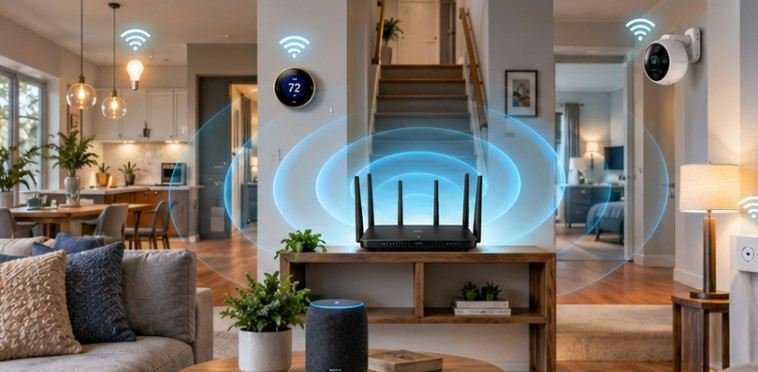
Router placement can matter more than an expensive hardware upgrade. A router hidden behind a television, inside a cabinet or at one end of a basement begins with a disadvantage. Wireless signals must pass through floors, walls, appliances and furniture before reaching distant devices.
Move the primary router toward the center of the areas that need coverage. Put it in the open and, where practical, above furniture rather than near floor level.
Avoid placing it directly beside large metal objects, electrical panels, aquariums or dense masonry.
Think about coverage in three dimensions, too. In a two-story home, a centrally positioned router near the middle floor may outperform one placed at the far corner of the ground floor.
Test Before and After Moving It
Do not judge the improvement from one phone speed test. Walk to the places where smart devices actually live: the front doorbell, garage opener, patio plug, attic sensor and outdoor camera.
Check whether each device stays connected, responds quickly and completes commands repeatedly. Reliability matters more than maximum download speed.
Give 2.4 GHz Devices the Network They Need
IEEE explains that 2.4 GHz generally offers longer range, while 5 GHz can provide higher speeds but has more difficulty penetrating walls. IEEE explanation of 2.4 GHz and 5 GHz Wi-Fi That makes 2.4 GHz especially useful for smart plugs, switches, locks and other low-bandwidth devices located farther from the router.
If a device refuses to complete setup, temporarily separating your 2.4 GHz and 5 GHz network names can sometimes help determine whether band steering is involved. After installation, many modern routers can manage both bands under one SSID.
Keep 2.4 GHz Channels Conservative
In the United States, channels 1, 6 and 11 are commonly used because they avoid the overlap created by many intermediate channel choices.
For a crowded smart home, a 20 MHz channel width on 2.4 GHz is often a sensible starting point. Wider channels can consume more spectrum and increase interference with nearby networks.
If your router automatically selects channels well, automatic mode may be fine. In a dense apartment or suburban neighborhood, however, testing channels 1, 6 and 11 can reveal a noticeably cleaner option.
Know When a Mesh System Actually Helps
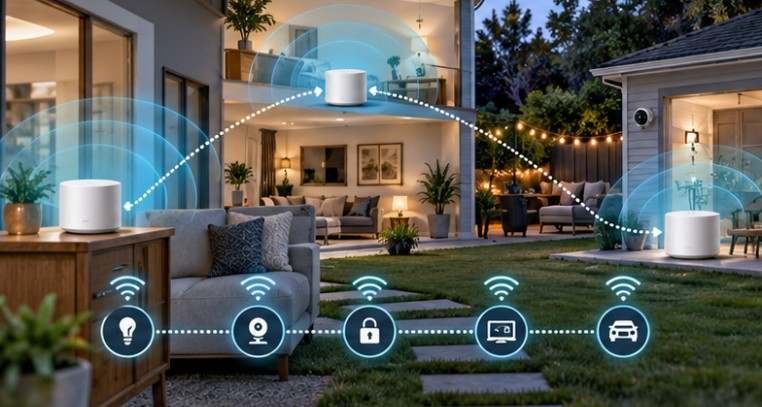
Mesh Wi-Fi is useful when one router cannot physically cover the home. Instead of asking a single access point to reach through several floors or across a long property, mesh systems distribute Wi-Fi through multiple nodes sharing one network.
They are particularly useful in larger houses, irregular floor plans and homes where smart cameras or locks sit at the edges of coverage. Placement still matters. Do not put a wireless mesh node inside the dead zone itself. Place it where it can still receive a strong connection from the main router while extending that signal toward the problem area.
For the best reliability, use Ethernet backhaul where practical. A wired connection between access points prevents those nodes from depending entirely on another wireless hop.
Extender, Access Point or Mesh?
Choose the solution based on the shape of the problem.
Use an Extender for One Isolated Weak Area
A basic range extender may be enough when only one bedroom, garage or patio has weak service.
It is inexpensive, but placing it too far from the router simply repeats an already poor signal.
Use a Wired Access Point for Maximum Stability
If Ethernet already reaches the distant part of the house, a wired access point is usually the stronger long-term option. It creates fresh Wi-Fi coverage without relying on a wireless relay between nodes.
Use Mesh for Multiple Dead Zones
Mesh becomes more attractive when poor coverage affects several rooms or floors and running Ethernet is impractical. Do not buy additional nodes blindly. Too many access points can create unnecessary radio congestion.
Run a Five-Minute Smart-Home Wi-Fi Audit
Before spending money, use this process. First, identify every device that drops offline rather than treating the whole network as broken. If all failures occur in one area, coverage is probably the issue.
Second, test the same device temporarily closer to the router. If reliability improves immediately, signal strength or interference is the likely culprit.
Third, reboot and update the router. The FCC specifically notes that a reboot can resolve connectivity problems and that outdated hardware may limit performance.
Fourth, inspect your 2.4 GHz settings and test a clean channel.
Fifth, move the router or reposition an existing mesh node before purchasing another one.
Finally, if the device remains unreliable beside the router, the problem may be firmware, hardware or compatibility rather than coverage.
Do Not Improve Coverage at the Expense of Security
A stronger Wi-Fi signal should not mean a weaker network. The FTC recommends using WPA3 Personal or WPA2 Personal encryption, changing default router credentials, keeping router software updated and enabling the router’s firewall.
NIST has also published cybersecurity requirements specifically for consumer-grade routers because home routers increasingly sit at the center of IoT environments.
For cameras and other sensitive devices, consider network segmentation or an IoT-specific network if your router supports it.
The Internet Society likewise recommends strong encryption, software updates, unique passwords and better home-network security for connected devices. e
Frequently Asked Questions
1. Why do my smart devices keep disconnecting from Wi-Fi?
Weak 2.4 GHz coverage, interference, poor router placement, outdated firmware or overloaded wireless channels are common causes.
2. Is 2.4 GHz or 5 GHz better for smart-home devices?
2.4 GHz usually provides better range and wall penetration. Many smart plugs, bulbs, locks and sensors also support only 2.4 GHz.
3. Will a mesh router improve smart-home reliability?
Usually, if the problem is several coverage gaps. Correct node placement matters; poorly positioned mesh nodes can still produce unreliable connections.
4. How many mesh nodes does a home need?
Use the fewest nodes that provide consistent coverage. Home size, construction materials, floor layout and whether Ethernet backhaul is available matter more than a fixed number.
Reliable Smart Home Starts With Coverage, Not Speed
The most useful lesson in how to improve wifi coverage for smart home devices is that smart homes rarely fail because they lack headline speed. They fail because wireless coverage becomes unreliable at the exact places where devices must operate.
Start with placement. Test 2.4 GHz coverage. Reduce interference. Add a wired access point, extender or mesh node only where measurements show you need one. A smart lock that responds every time is more valuable than a router capable of impressive speeds in a room where none of your smart devices actually live.