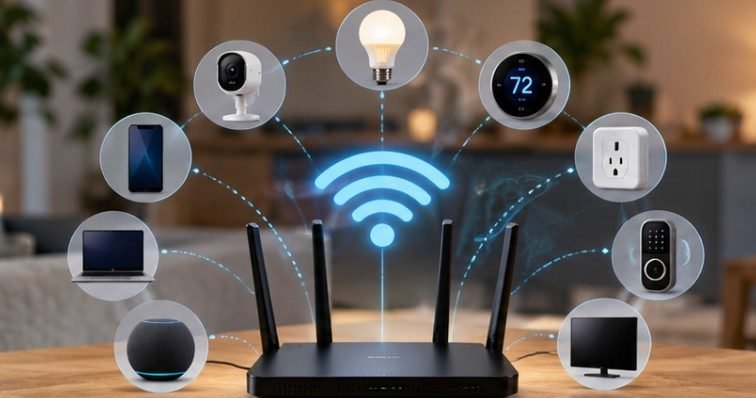
A router that claims support for 100, 150, or even 250 connected devices can still struggle in a house with only 30. The reason is simple: the number of devices listed on the router’s client table is not the same as the number it can serve well at the same time.
So, how many smart devices can a home router handle without slowing everything down? For many households, roughly 20 to 50 actively communicating Wi-Fi devices is a more useful real-world range than the theoretical maximum. Modern Wi-Fi 6, Wi-Fi 6E, and Wi-Fi 7 equipment can often handle substantially denser networks, but device behavior, signal quality, router hardware, and internet activity matter more than the headline number.
The 250-Device Number Is More Misleading Than Helpful
You will often see home-network limits quoted at about 250 devices. Part of that figure comes from the way many traditional home networks allocate IPv4 addresses.
A common home subnet can make roughly 254 host addresses available, although the router itself, DHCP configuration, reserved addresses, and other network settings affect what can actually be assigned. That is an addressing limit, not a performance guarantee.
A router may successfully assign addresses to a huge collection of smart bulbs, plugs, thermostats, TVs, cameras, laptops, speakers, and phones while delivering poor performance once many of them begin transmitting simultaneously.
NIST emphasizes how central consumer-grade routers have become as homes accumulate IoT equipment and remote-work devices. Its consumer-router cybersecurity guidance treats the router as critical infrastructure for the connected household rather than simply a box that provides Wi-Fi.
Connected Devices and Active Devices Are Different Problems
Imagine two homes with 40 networked products. In the first, 25 are smart bulbs, plugs, leak sensors, thermostats, and switches. Most transmit tiny amounts of information and spend long periods doing almost nothing.
In the second, several televisions are streaming 4K video while two security cameras upload footage, somebody joins a video conference, a console downloads a 100 GB game, and multiple phones sync photos. Both routers may show 40 clients. Their workloads are completely different.
This is why asking how many smart devices can a home router handle requires looking beyond the device count.
A temperature sensor reporting periodically might generate negligible traffic. An always-recording Wi-Fi camera can send data continuously. Smart doorbells, televisions, computers, cloud-connected cameras, gaming systems, and phones therefore deserve more attention than dozens of low-data sensors.
The FCC has similarly warned that even modern home networks can become congested when users simultaneously stream, game, use VPNs, and participate in video conferences.
Why Wi-Fi 6 Changed High-Device Homes
Older Wi-Fi networks largely had to take turns serving clients. The more active devices competing for airtime, the more inefficient the process could become. Wi-Fi 6, based on IEEE 802.11ax, was designed partly to improve performance in dense environments.
OFDMA Makes Small Transmissions More Efficient
Orthogonal Frequency Division Multiple Access, or OFDMA, lets an access point divide a Wi-Fi channel into smaller resource units so multiple clients can be served more efficiently.
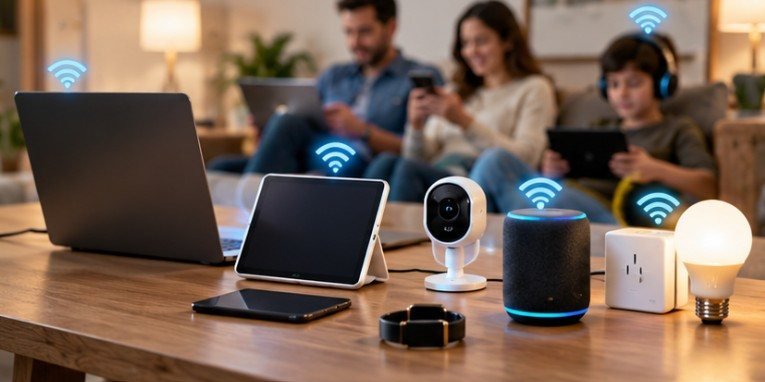
That matters in smart homes because many IoT devices send small amounts of information rather than enormous continuous streams.
IEEE research evaluating 802.11ax found that OFDMA can reduce latency and improve throughput under suitable multi-device conditions.
MU-MIMO Helps Serve Multiple Clients
Multi-user MIMO allows compatible equipment to communicate with multiple clients using separate spatial streams instead of treating every transmission as a strictly one-device-at-a-time event.
Wi-Fi 6 expands those multi-user capabilities compared with earlier generations. The practical result is not an unlimited device count, but better efficiency when numerous devices need access.
Consumer Reports currently recommends Wi-Fi 6 as a practical baseline when buying a router and notes that newer standards are better suited to households containing dozens of connected products.
A Better Way to Estimate Your Router’s Capacity
Instead of counting every device equally, divide your household equipment into three groups.
Low-traffic devices
Count smart bulbs, switches, plugs, thermostats, locks, basic sensors, and similar products as light network loads. Twenty such devices may place less demand on Wi-Fi than one busy laptop.
Medium-traffic devices
Phones, tablets, voice assistants, appliances, printers, and occasionally accessed smart-home equipment belong in the middle. Their impact depends heavily on how often they communicate.
Heavy-traffic devices
Pay particular attention to 4K televisions, Wi-Fi security cameras, video doorbells, gaming PCs, consoles, NAS transfers, video conferencing systems, and computers handling large downloads.
Then perform a simple stress test.
Run the household as it would be used during its busiest evening. Stream video on the televisions, start a video call, view security cameras, and use phones normally. Run speed and latency tests near the router and in the rooms where problems usually occur. If speeds collapse only in distant rooms, capacity may not be the problem at all. Coverage probably is.
Signal Strength Can Fail Before Router Capacity Does
A powerful router placed badly can perform worse than a modest router positioned properly. The FCC recommends central router placement because walls, floors, distance, and household construction weaken wireless signals. It also notes that 5 GHz Wi-Fi can provide higher speeds but generally has shorter range than 2.4 GHz.
This distinction matters for smart homes. Many inexpensive IoT products still rely on 2.4 GHz because its longer wavelength generally travels farther through a house.
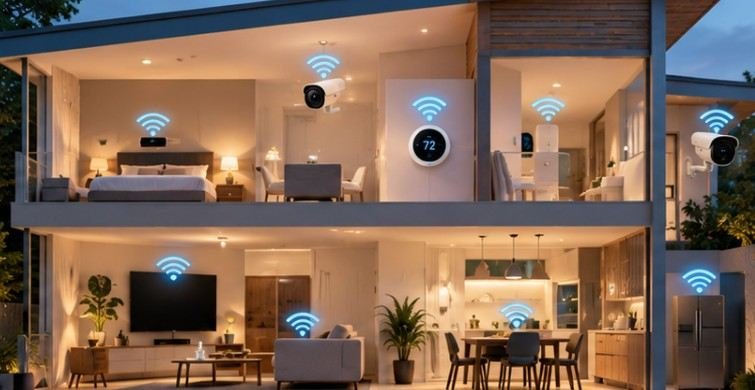
Large American homes, multi-story properties, basements, detached garages, and outdoor cameras can expose coverage limitations long before the router reaches its client maximum.
In those situations, a mesh Wi-Fi system or additional wired access points often provides a larger improvement than simply buying a router advertised with a higher device count.
Do Not Forget the Router’s Processor and Memory
Wi-Fi radios are only one part of the equation. The router also handles DHCP assignments, network address translation, firewall rules, encryption, device management, quality-of-service functions, security scanning, and sometimes parental controls or VPN traffic.
Low-cost or aging routers can therefore become overloaded even when wireless airtime appears adequate.
A useful warning sign is a network that works normally after rebooting but gradually becomes unstable as more clients reconnect. Frequent disconnects, delayed smart-home commands, unusually high latency, router crashes, and unexplained slowdowns can all indicate that the router is becoming the bottleneck.
Smart-Home Capacity Is Also a Security Question
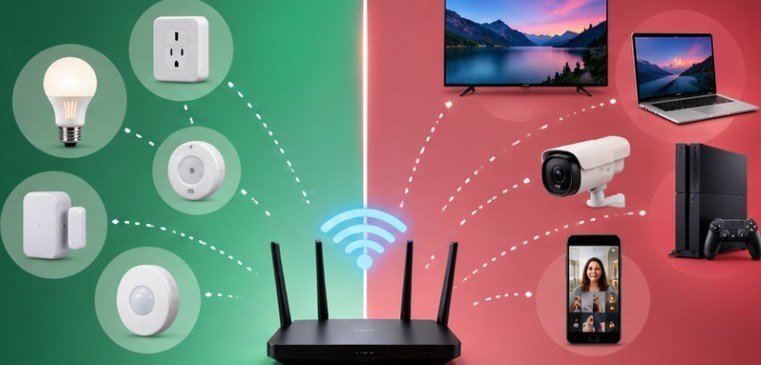
Adding dozens of IoT devices increases more than traffic. Every connected product becomes another endpoint that must be maintained. NIST research on home and small-business IoT networks has explored restricting devices to only the communications required for their intended functions, reducing exposure to network-based attacks.
The Internet Society likewise recommends keeping IoT software updated, using strong unique credentials, enabling encryption, and securing the home network itself.
For a large smart home, a separate IoT network, guest network, or appropriately configured VLAN can also make device management and isolation easier when the router supports it.
When Should You Upgrade?
Do not replace a router just because its app lists 40 devices. Upgrade when you have measurable problems: recurring disconnects, cameras dropping offline, poor latency during busy periods, dead zones, slow transfers between local devices, or an older Wi-Fi generation struggling with simultaneous users.
For an ordinary connected household, a quality Wi-Fi 6 router can remain entirely adequate. Dense smart homes, large properties, gigabit connections, numerous cameras, or many simultaneous users may benefit from Wi-Fi 6E, Wi-Fi 7, mesh networking, or wired access points.
The model’s processor, radio configuration, firmware quality, coverage, and actual workload matter more than a marketing claim such as “supports 200 devices.”
Frequently Asked Questions
1. Can a router really handle 250 devices?
It may be able to assign network addresses to roughly that many clients, but maintaining good performance with 250 simultaneously active Wi-Fi devices is a much tougher requirement.
2. Do smart bulbs slow down Wi-Fi?
Usually very little. Most smart bulbs exchange small amounts of data. Large numbers can add overhead, but streaming, cameras, downloads, and video calls generally create far heavier loads.
3. Is Wi-Fi 6 better for many smart devices?
Yes. Technologies such as OFDMA and improved multi-user operation make Wi-Fi 6 more efficient in networks where numerous devices need to communicate.
4. Should smart-home devices use 2.4 GHz or 5 GHz?
Many IoT products use 2.4 GHz because of its range and compatibility. Higher bands can offer more capacity and speed for compatible devices but generally provide shorter indoor range.
The Number That Matters Is the Number Working Well
The answer to how many smart devices can a home router handle is not hidden in a 250-device specification. What matters is how many devices can work simultaneously without noticeable delay, buffering, disconnections, or lost coverage. A home containing 60 mostly idle sensors may run beautifully, while another with 25 high-bandwidth devices may struggle.
Count your devices, but classify their workloads too. Test the network during its busiest hour, check weak-signal areas, and upgrade only after identifying the actual bottleneck. In a smart home, reliable capacity is measured by performance—not by how long the router’s client list can become.